

Video
In WordPress’ Gutenberg Editor, the Embed Block can be used to simply add videos by embedding a link from third-party services.
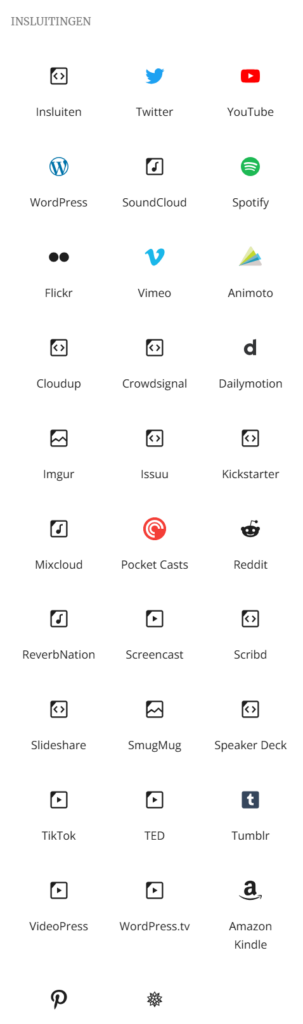
You do this by either using a specific Embed block at the bottom of the +Block Inserter or by placing the link of a video in the paragraph block, the video will automatically embedded and shown.
If possible it uses the Embed block of the service which hosts the video.
This Embed Block list shows all the available options, but any video from a website that hosts a video can be embedded, just be mindful of copyrights and GDPR.
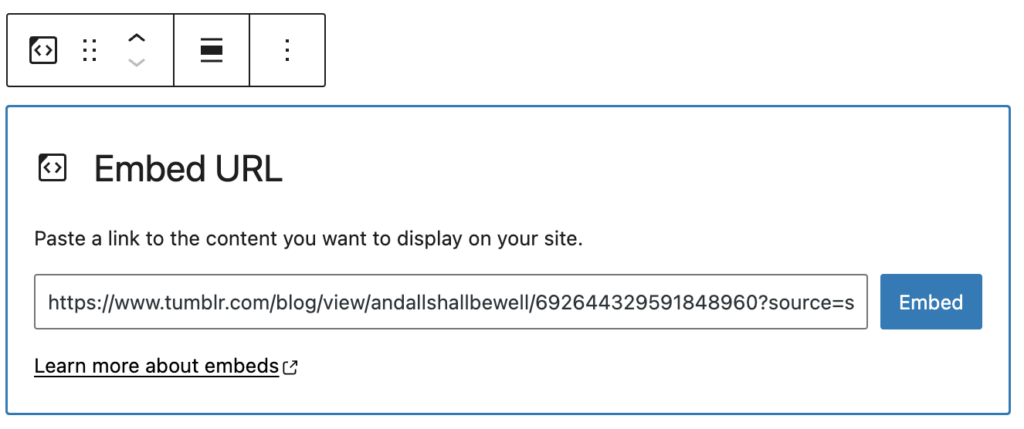
This video has been embedded by simply placing it’s link in a paragraph block.
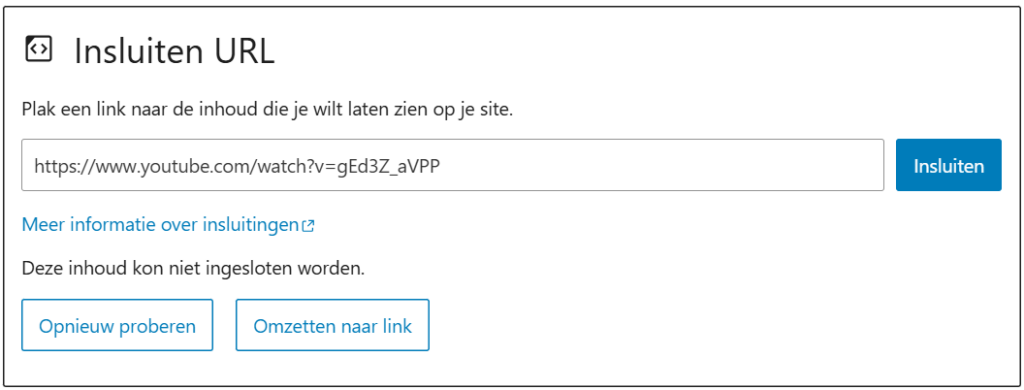
You can also create a list of video links by placing the link in the Embed Block and selecting: Convert to Link, by clicking the bottom right button.
An example list of videos:
Using the WYSIWYG-editor
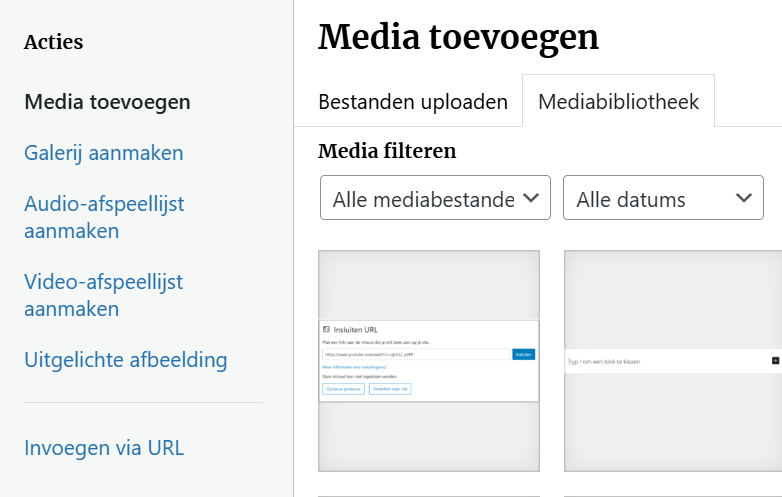
If your site uses the WYSIWYG-editor or you prefer using the block bearing the same name, then you need a different method to post a video. In the classical editor you select the ‘Add Media’ button.
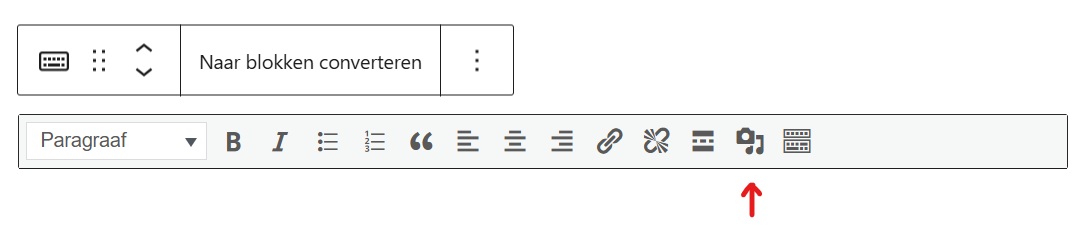
This will take you to the media library of your site with a sidebar on the left. Choose the option at the bottom ‘From URL’ to share a video.
Third-party video storage services
Please note
Hosting videos takes up a lot of data space and bandwidth on the servers which hosts them, for that reason we have chosen to not host any videos on our servers. We would like to ask you to use any third-party service of your choosing.
A list of possible options follows below this notification in order of preference and in accordance with the University Utrecht tool advisor.
Microsoft Stream
This tool is supported by Utrecht University and it safe to use. Your data will not be sold or used for other commercial activities. You can use your credentials from Utrecht University to log on to this service, your password will not be shared.
On manuals.uu.nl there is this guide on how to use Microsoft Stream.
Sign in to Microsoft Cloud with your UU credentials.
OneDrive
The University Utrecht makes use of OneDrive Business, which is also safe to use. In OneDrive employees can store 1TB of data and students 100GB, which makes it ideal to also use as a storage place for a couple of videos. More information on how to make use of this can be found here: UU OneDrive for employees and students.
Microsoft’s OneDrive allows you to store files, this includes video files, to learn how to do that you can either read this page: Upload to OneDrive or follow the step to step guide below.
OneDrive video upload and share guide
Log in on OneDrive as you normally log in on your do or go to onedrive.live.com and sign in with your Microsoft account.
Upload:
- Drag and Drop: Drag your video file directly from your computer into the browser window.
- Upload Button: Click + Add new in the top left corner, then select Files upload.
Share:
- Hover over the video file and click the Share icon (arrow in a box).
- Alternatively, select the circle next to the file, then click Share at the top.
Configure Permissions:
- Click the gear icon or the permission settings (e.g., “Anyone with the link can edit”) to change access.
- To prevent others from editing, change settings to “Can view” or uncheck “Allow editing”.
Copy Link: Click Copy link to generate a URL you can send via email, chat, or other apps.
YouTube
The UU has a YouTube Channel. If your video complies with the guidelines then you can fill in a form found on this page to have your video published on this channel.
Another option would be to host your own channel on YouTube and host the video from there: Getting started on YouTube. You first need to setup an account and after that you can create a channel to add videos.
YouTube gives you unlimited video storage.
Important notice:
Your videos on YouTube may be censored or you can be shadow banned, depending on your content. Your videos may be used for commercial purposes.
YouTube only suited for publicly available videos (like on the UU YouTube channel). When uploading to YouTube you should always take the privacy of the people that are in the video into consideration. If you can use Microsoft Stream you should use that.
Vimeo
Vimeo has been created to host videos. It is free to use but it also requires you to create an account before you can start using it. Vimeo gives you 1GB of storage with a free account. 5GB with a basic plan.
Important notice:
- This tool is not supported by Utrecht University and/or the IT Service Desk
- Your data may not be safe
- Your data may be used for commercial purposes
- Your privacy (identity and/or data) is not guaranteed
- You are not allowed to use this service for any sensitive UU data. You may only use it for data that is intended to be publicly available.
Lecture videos
With the UU video platform you can record lectures in a lecture hall (especially for lecturers) or record knowledge clips with the press of a button. If you are not familiar with the UU Video Platform then this page will have the information you need to get started.
This FAQ manual answers all the questions regarding publishing and sharing videos on the platform.
As for posting videos on a WordPress website. This can also be done by embedding the link, which you can get by following the steps of ‘Share, move, delete and download videos in the FAQ manual.