

Agenda
If you are planning to promot events, meetings or any other of such activities, then you might want to make use of the agenda function. Follow the steps below to add the Agenda Post-type to your site.
Creating Agenda Posts
Step 1
In WordPress you can create Agenda Posts to publish events.
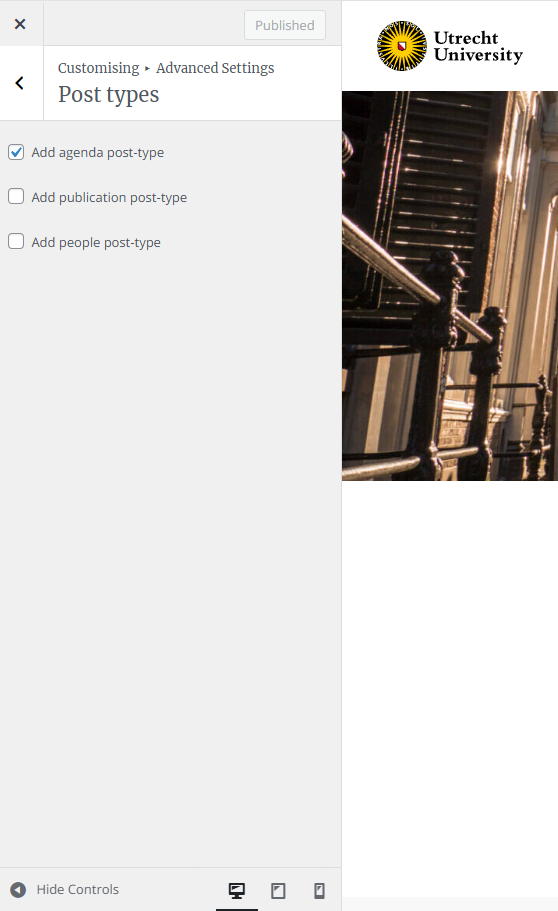
The Agenda Posts aren’t activated right away on a new site, so you will not see them in the left menu. You can activate these posts by going in the left menu to Appearance > Advanced Settings and check the box for “Add agenda post type”.
Step 2
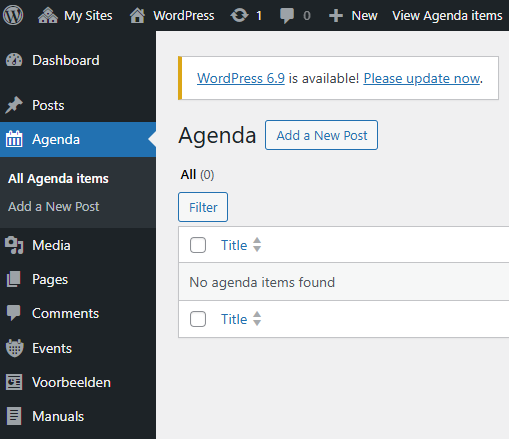
The Agenda Posts will now appear in the left menu below Posts, as seen in the image to the left.
Step 3
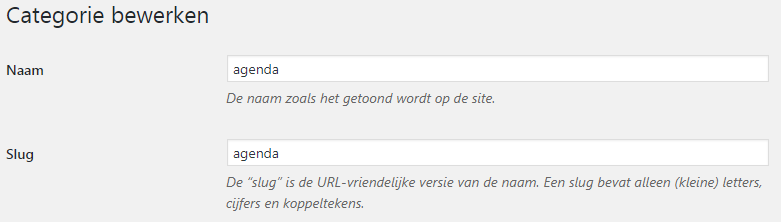
Create a category with the slug ‘Agenda’.
Step 4
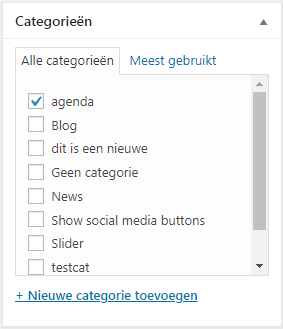
If you want to create an agenda post, you first create a new Agenda Post and attach the Agenda category to it. You can do this on the right side of the screen. The tab on the top of the toolsbar on the right needs to say ‘Page’.
Step 5
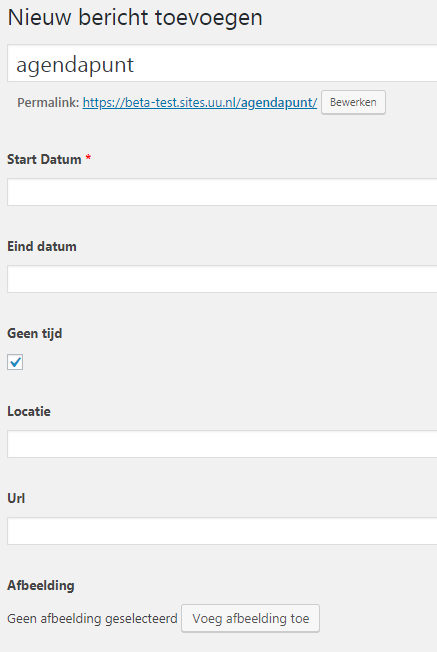
Once you have added the content to the post, or even before that, you can add the meta data of the event: time, location, etc. This can be done at the bottom of the page.
Step 6
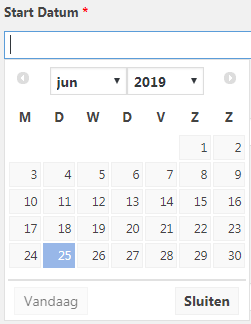
Fill in the start date of the event. If the event takes multiple days, you can also choose to add an end date.
Step 7
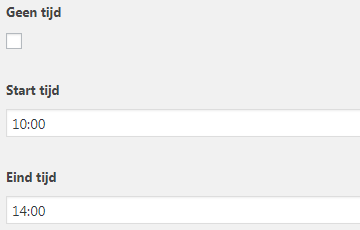
Fill in the begin and end time of the event. Check ‘no time’ if that isn’t needed.
Step 8
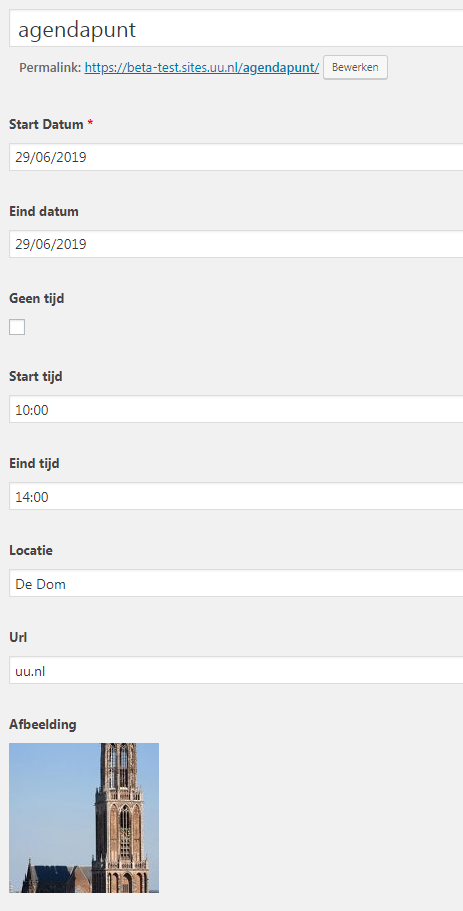
Further options are:
- The location of the event, this can also be an url to Google Maps.
- An url, e.g. the website of the location where the event is hosted or a website with additional information.
- An image which is visible between the other events on the website.
- Once you have added all the necessary information you can publish the event.
Step 9
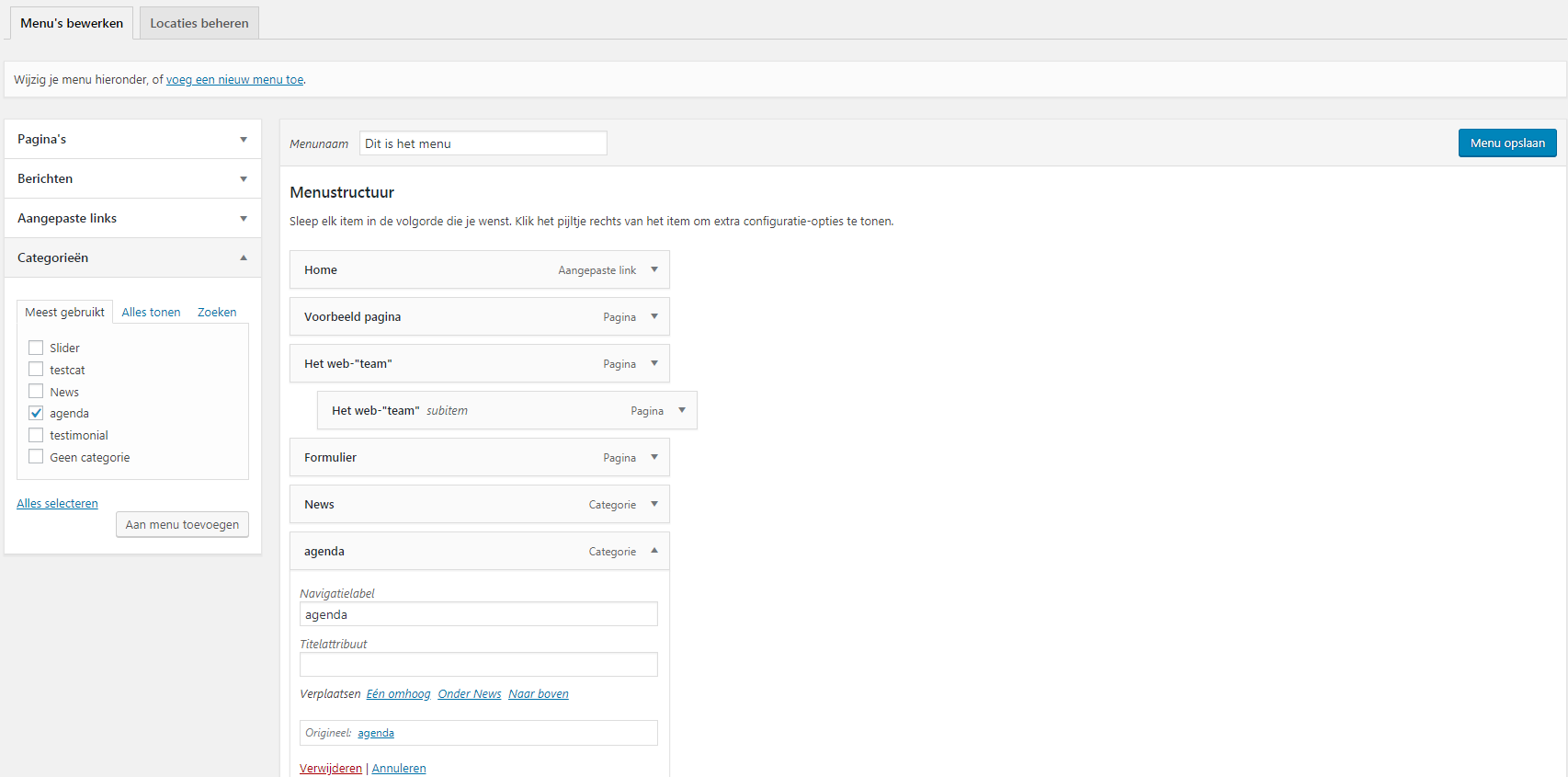
If you want to show all the agenda points together on a page, you can go to Appearance > Menu’s and add the Agenda Category Page to the menu. This is an Archive page which shows all the posts with the Agenda category.
Step 10
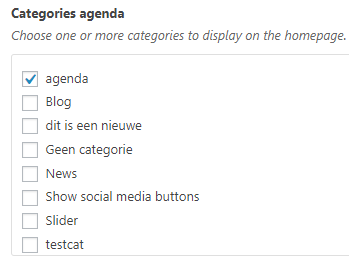
You can display your Agenda Posts on the homepage. To do that you have to go UU Options > Theme Options and select the Agenda Category for the homepage.